Chapter 30 of 40
Tree table with checkboxes
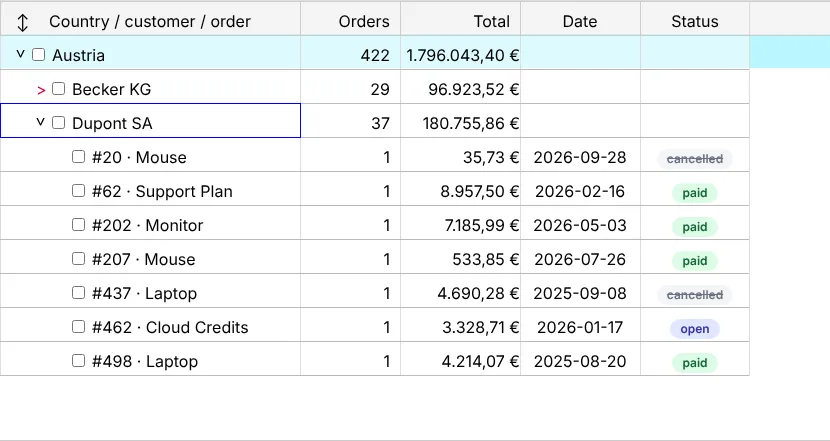
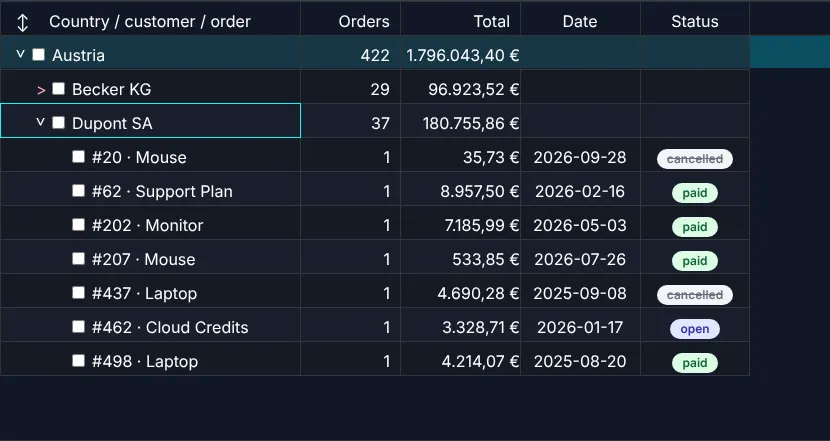
Country → customer → order: group your data into a tree and let users check rows.
After this chapter you can
- build tree rows with TreeFactory
- start collapsed
- react to checked rows
Hierarchical data
5,000 orders, grouped by country → customer → order. Every node has its own totals and a unique id:
import type { Order } from "./data/orders";
export interface OrderNode {  id: string;                    // unique per node – needed to remember expanded rows (chapter 33)  label: string;  orders: number;  total: number;  date?: string;  status?: Order["status"];  children?: OrderNode[];}
function group<T>(items: T[], key: (t: T) => string): Map<string, T[]> {  const map = new Map<string, T[]>();  for (const item of items) map.set(key(item), [...(map.get(key(item)) ?? []), item]);  return new Map([...map].sort(([a], [b]) => a.localeCompare(b)));}const sum = (orders: Order[]) => Math.round(orders.reduce((s, o) => s + o.total, 0) * 100) / 100;
export function buildOrderTree(orders: Order[]): OrderNode[] {  return [...group(orders, o => o.country)].map(([country, byCountry]) => ({    id: country, label: country, orders: byCountry.length, total: sum(byCountry),    children: [...group(byCountry, o => o.customer)].map(([customer, byCustomer]) => ({      id: `${country}/${customer}`, label: customer, orders: byCustomer.length, total: sum(byCustomer),      children: byCustomer.map(o => ({        id: String(o.id), label: `#${o.id} · ${o.product}`, orders: 1, total: o.total, date: o.date, status: o.status      }))    }))  }));}
From objects to tree rows
TreeFactory.buildTreeRows() wraps every object into a TreeRow (with
expanded state and children). TableFactory.createTableModel() recognises tree rows and creates an
AreaModelTree – the first column gets the arrows.
import {  ColumnDef, TableFactory, type TableModelIf, type TableOptionsIf, TreeFactory,  allRight, bodyLeft, px100, px110, px120, px300} from "@guiexpert/table";import { EuroRenderer, StatusBadgeRenderer } from "./order-renderers";   // chapter 25
export function createOrderTreeModel(orders: Order[], tableOptions: TableOptionsIf): TableModelIf { const columnDefs = [ new ColumnDef("label", "Country / customer / order", px300, bodyLeft), // the first column holds the tree new ColumnDef("orders", "Orders", px100, allRight), ColumnDef.create({ property: "total", headerLabel: "Total", width: px120, headerClasses: ["ge-table-text-align-right"], bodyClasses: ["ge-table-text-align-right"], bodyRenderer: new EuroRenderer() }), new ColumnDef("date", "Date", px120), ColumnDef.create({ property: "status", headerLabel: "Status", width: px110, bodyRenderer: new StatusBadgeRenderer() }) ]; const rows = TreeFactory.buildTreeRows<OrderNode>(buildOrderTree(orders), { childrenProperty: "children", expanded: false // start collapsed (default: everything open) }); return TableFactory.createTableModel({ rows, columnDefs, tableOptions });}childrenProperty– where the children are in your objects.expanded: false– start collapsed (default: everything open). Also a function:(row, deep) => deep === 0opens only the first level.
Checkboxes
import { EventAdapter, SimpleDomService, TableOptions, TableScope } from "@guiexpert/table";
const tableOptions: TableOptionsIf = {  ...new TableOptions(),  hoverColumnVisible: false,  showCheckboxWihoutExtraColumn: true          // checkbox inside the tree column, after the arrow};const tableModel = createOrderTreeModel(createOrders(5_000), tableOptions);
class TreeEvents extends EventAdapter {  override onCheckboxChanged(rows: any[]): void {   // all checked rows (parents check their children)        info.textContent = `${rows.length} rows checked`;  }}const host = document.querySelector<HTMLDivElement>(".table-div")!;const scope = new TableScope(host, tableModel, new SimpleDomService(), tableOptions, new TreeEvents()).firstInit();
TableOptionsIf.showCheckboxWihoutExtraColumn (sic) puts a checkbox into the tree column, right after the arrow.
EventListenerIf.onCheckboxChanged() gets all checked rows; checking a parent checks its children.
Showcases
Tree table and Tree table with checkboxes.
Next
Part 7: the table becomes editable – chapter 31 (Inline editing).