Chapter 35 of 40
Accessible tables: keyboard and screen readers
A screen reader hears “row 5 of 1,001, Total, 243.20” – and every key of the WAI-ARIA grid works.
After this chapter you can
- name the table for screen readers
- know the keys of the grid
- announce sorting, filter and copy – also in German
- write cell renderers that screen readers understand
Why it matters
A data grid is a wall of divs. Without help, a screen reader announces “group, group, 243.20” – no row, no column,
no header. Since @guiexpert/table@1.1.91 the table is a WAI-ARIA grid (a tree: a
treegrid): rows and cells have roles, the screen reader knows the real size of the table – also with virtual
scrolling, where only 30 of 100,000 rows are in the DOM – and every key of the grid pattern works. For many public and
corporate customers that is a must (WCAG 2.1 AA, EN 301 549, in Germany the BFSG since June 2025).
Give the table a name
Everything else is automatic. Name the grid with TableOptionsIf.ariaLabelledBy (the id of a visible
heading – preferred) or TableOptionsIf.ariaLabel. With TableOptionsIf.ariaTexts you
replace the English announcements, e.g. with German ones (AriaTextsIf):
import { TableOptions, type AriaTextsIf, type SortState, type TableOptionsIf } from "@guiexpert/table";
const german: Partial<AriaTextsIf> = {  sorted: (column: string, state: SortState) =>    state ? `Sortiert nach ${column}, ${state === "asc" ? "aufsteigend" : "absteigend"}` : `${column} unsortiert`,  filtered: (rowCount: number) => `${rowCount} Zeilen`,  copied: (cellCount: number) => `${cellCount} Zellen kopiert`,};
export function createAccessibleOptions(language: "en" | "de"): TableOptionsIf {  return {    ...new TableOptions(),    ariaLabel: "Orders",                              // or ariaLabelledBy: "id-of-a-heading"    ariaTexts: language === "de" ? german : undefined // English defaults otherwise  };}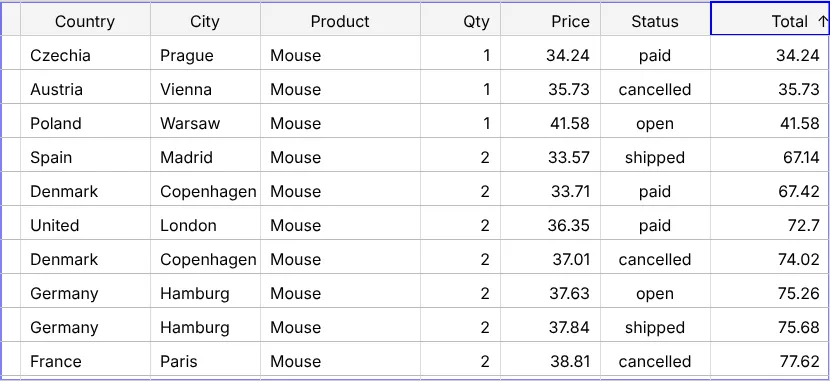
The keys
| Key | Action |
|---|---|
| Tab | into the table (one tab stop) – the first visible cell gets the focus |
| ← → ↑ ↓ | move the focus cell; ↑ in the first row moves into the header, ↓ back |
| Home / End | first / last cell of the row (macOS also ⌘← / ⌘→) |
| Ctrl+Home / Ctrl+End | first cell of the table / last cell of the last row (macOS also ⌘↑ / ⌘↓) |
| Page Up / Page Down | one page |
| Enter | header: sort, open/close a header group · body: row checkbox, open/close a tree node or a detail row |
| Space, Ctrl+A, Ctrl+C, F2 | select, select all, copy, edit (chapter 22 (Selection & copy), chapter 31 (Inline editing)) |
The keys are ActionIds – change them with shortcutActionIdMapping (chapter 19 (TableOptions)).
What the screen reader gets
- Size and position:
aria-rowcountcounts header + all body rows + footer, every rendered row and cell carriesaria-rowindex/aria-colindex– “row 5,001 of 100,001”. - Focus: the table keeps the DOM focus,
aria-activedescendantpoints to the focused cell. - State:
aria-sorton headers,aria-selected, tree level and expanded state, checkboxes with names (“Select row 5”), partly checked = “mixed”. - Announcements through a polite live region: sorting, the filter result, copied cells, select all.
Your own messages with
TableApi.announce():
const api = scope.getApi();api.announce(language === "de" ? "1.000 Bestellungen geladen" : "1,000 orders loaded");Your own renderers
The cell is already a gridcell – do not change its role. Text is read; a purely visual statement needs a text
alternative. The built-in progress bar, star, true/false and gender renderers do it; in your own renderers
(chapter 25 (Cell renderers), chapter 26 (Components as cells)) use role="img" with an
aria-label, or hidden text:
render(cellDiv: HTMLDivElement, _r: number, _c: number, _a: AreaIdent, _m: AreaModelIf, value: Order["status"], dom: DomServiceIf) { const dot = dom.createElement<HTMLSpanElement>("span"); dom.addClass(dot, `dot-${value}`); // a coloured dot … dom.setAttribute(dot, "role", "img"); dom.setAttribute(dot, "aria-label", value); // … that screen readers read as "shipped" dom.appendChild(cellDiv, dot); return undefined;}Next
Back to the overview: all chapters – or the checklist for your own table: chapter 34 (Checklist & finale).